Author | Jackie
New to digital planning? Confused about apps, PDF planners, sticker sheets.? What on earth is 'pre-cropped'? Do you need an iPad to do digital planning?
Don’t worry, all will become clear!
We’ll look at the essentials you need to know to get started. You could be up and running with your new digital planner in just an hour!
I’ve also created a beginner’s Quick Start Guide you can download. The download includes a digital notebook, stickers and covers, so you can follow along with the tutorials in the guide.
Digital Planning Quick Start Guide
What You need
To use a digital planner (or notebook, journal or sticker sheet), you need a device and an app.
A Device
There are apps for both iOS and Android devices. So no, you don’t need an iPad or an Apple Pen to start digital planning! There is, however, more choice available for iOS and as such, more tutorials and online support.
An App
Digital Planners in the context we are talking about here are PDFs with hyperlinks.
To use PDF digital planners and notebooks, you will need a PDF-annotating app. That is an app that allows you to write on, draw on, type on, or add media to a PDF document.
There are many apps available for iOS and Android tablets. Ones that are popular for digital planning and note taking at the time of writing are:
- GoodNotes - for iOS only
- Noteshelf - for iOS and Android
- Notability - for iOS only
- Zoomnotes - for iOS only
A Digital Planner or Notebook
Along with your PDF-annotating app, you will need a PDF planner, notebook or journal to annotate!
If you are new to digital planning and don’t have a stash of digital stationery yet, I suggest you download the Quick Start Guide. It includes a 3-tab notebook, so you can start to play without fear of messing up, supported by step-by-step tutorials for the essentials!
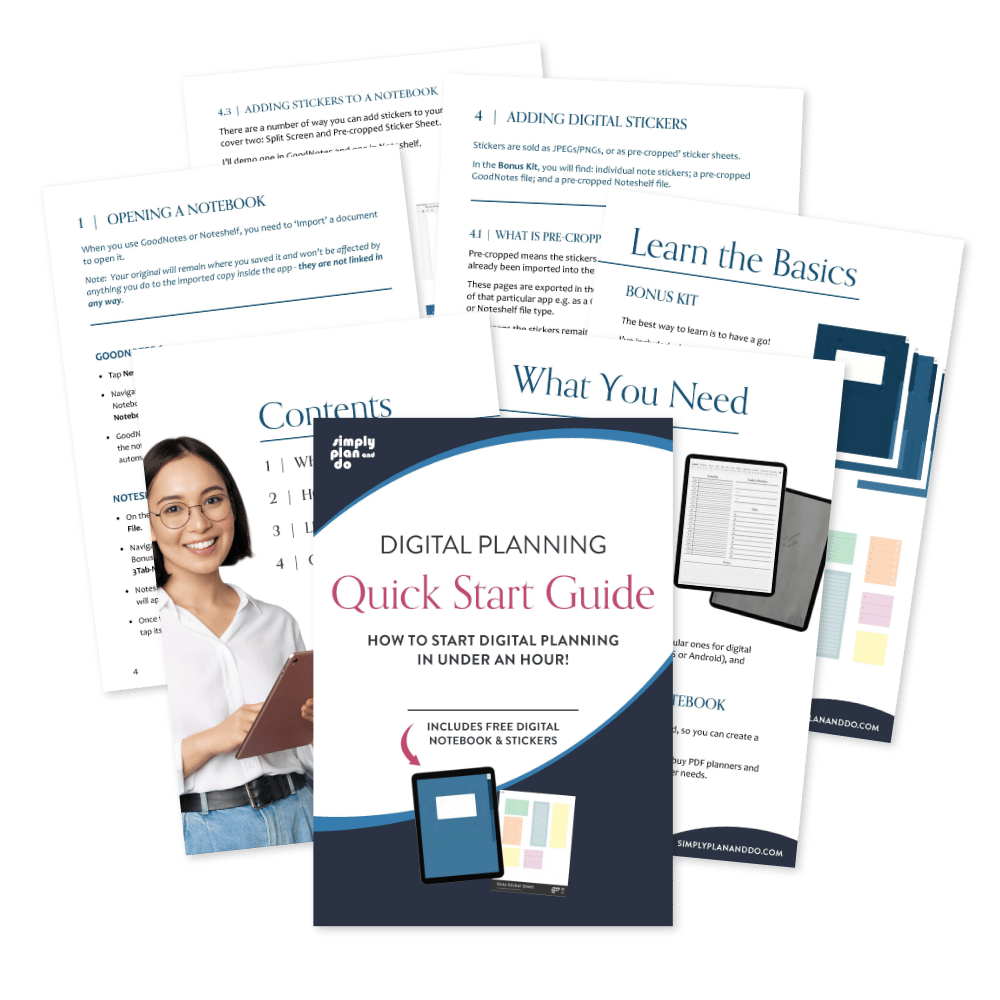
Digital Planning Quick Start Guide
Learn the Basics
The most common questions I get from beginners are about:
- Opening a digital notebook.
- Using hyperlinks.
- Changing covers.
- Adding digital stickers.
Opening your planner or notebook
To open a digital planner or notebook, you need to ‘Import’ it into your app.
What you are actually doing when you import a PDF planner or notebook is, you are making a copy on your iPad or tablet. This copy is saved inside your chosen app, e.g. GoodNotes or Noteshelf.
Your original digital planner or notebook PDF document will remain where you downloaded it. It won’t be affected by anything you do to the imported copy inside the app - they are not linked in any way.
In the Quick Start Guide, I walk you step-by-step with diagrams through opening a PDF in GoodNotes and Noteshelf.
Using hyperlinks
Hyperlinks are the easiest things to grasp when you start digital planning. They basically work like a website works. You click on a link which takes you to another page.
Digital planners or notebooks typically have hyperlinked tabs running down the side, mimicking divider tabs in paper planners or paper notebook folders.
The trend at the moment is for a more app-like dashboard appearance with ‘buttons’ for hyperlinks.
Whichever style of planner you use, the one thing you need to remember is that hyperlinks work when in ‘read’ mode. If you click on a link and nothing happens, just switch to ‘read’ rather than ‘write’ mode.
Changing the cover
Changing covers doesn’t sound like an important thing to be able to do. It is purely aesthetic, isn’t it?
Well actually, customising your covers is a really useful way to find things quickly and easily. Once you are a pro at digital planning and note taking, it won’t be long before you have multiple notebooks and planners in your PDF app.
Using covers is a great way to categorise your PDFs or to make them easy to spot in a sea of thumbnails!
How to change covers step-by-step with GoodNotes and Noteshelf is covered in the Quick Start Guide.
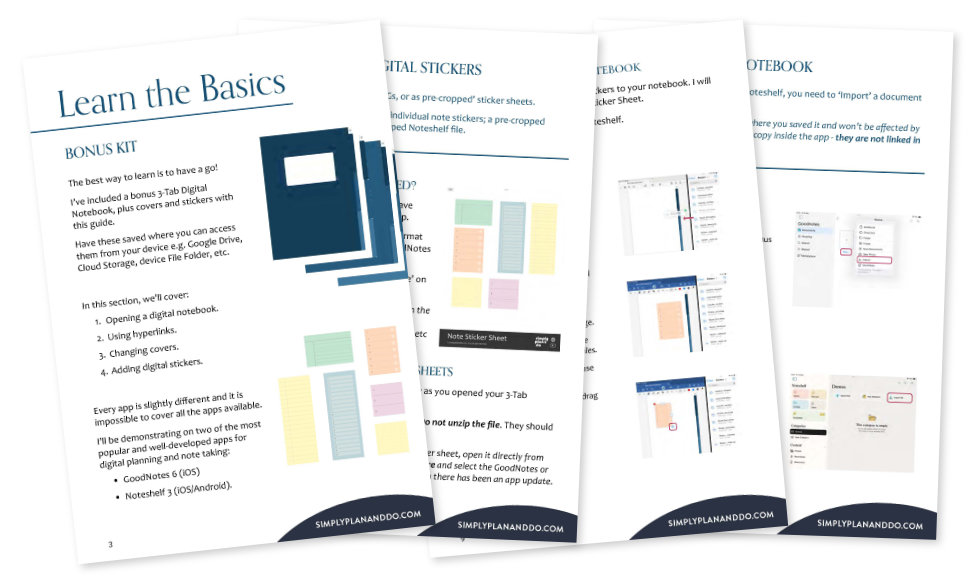
Digital Planning Quick Start Guide | Step-by-Step Tutorials
Adding digital stickers
Digital Stickers come in a multitude of formats:
- single JPEG or PNG files
- a sticker sheet of pre-cropped stickers
- a collection of Elements (for the GoodNotes app)
What are pre-cropped stickers?
Pre-cropped means the stickers have already been imported into the app. These pages are then exported by the designer in the format of that particular app. This means the stickers remain ‘loose’ on the page and are not flattened.
You as the user, import the sticker sheet into your app and then copy and paste the stickers from the sheet into your planner or notebook.
For example, if I created a sticker sheet in GoodNotes, I would export that sticker sheet as a GoodNotes file. This sticker sheet could then only be opened by the GoodNotes app.
You can find out how to add stickers to a page in GoodNotes and Noteshelf in the Quick Start Guide. The download also includes a set of stickers for you to practise with. The Guide covers:
- drag and drop method or individual JPEGs or PNGs
- adding stickers from a Sticker Sheet
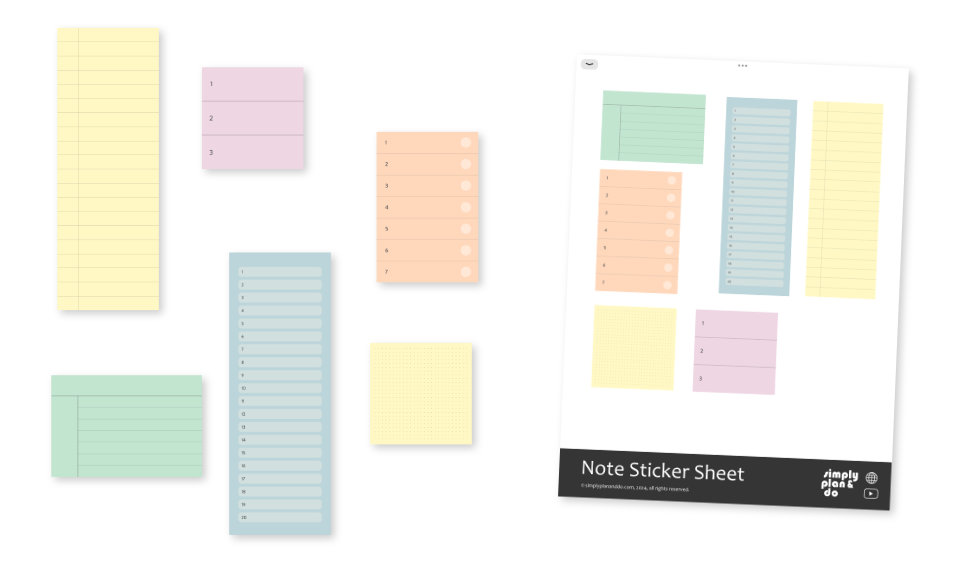
Digital Planning Quick Start Guide | Stickers & Sticker Sheet
How to Get Started with Digital Planning
I suggest you grab the Quick Start Guide as the download includes digital stationery and step by step tutorials on how to change your cover, add stickers, and use read/write modes in both GoodNotes and Noteshelf.
In a matter of an hour to two, you will know the essentials of PDF digital planning and note taking:
- Opening your PDF
- Using hyperlinks
- Changing a Cover
- Adding Stickers to a page
~ PIN THIS BLOG POST TO READ LATER ~